How to automate client communication with Synup

For agencies managing 20+ clients, routine communication is a time drain. Invoice reminders, onboarding emails, document delivery, performance updates: none of these require strategic thinking, but all of them require someone’s time. At scale, that amounts to hours each week that could go toward strategy or new business.
Synup OS handles these workflows automatically. Here’s how four specific communication workflows work and how to set them up.
Chasing payments manually is one of the most avoidable time costs in agency operations. Synup’s invoice reminder system handles the full follow-up cycle automatically.
To set it up: Go to Settings > Invoices > Reminder Settings. Configure three things:
- First Reminder: How many days before the due date does the first reminder send?
- Recurring Reminder: Whether reminders repeat after the due date, and how often.
- Reminder Time: The exact time reminders go out, based on your account’s timezone.
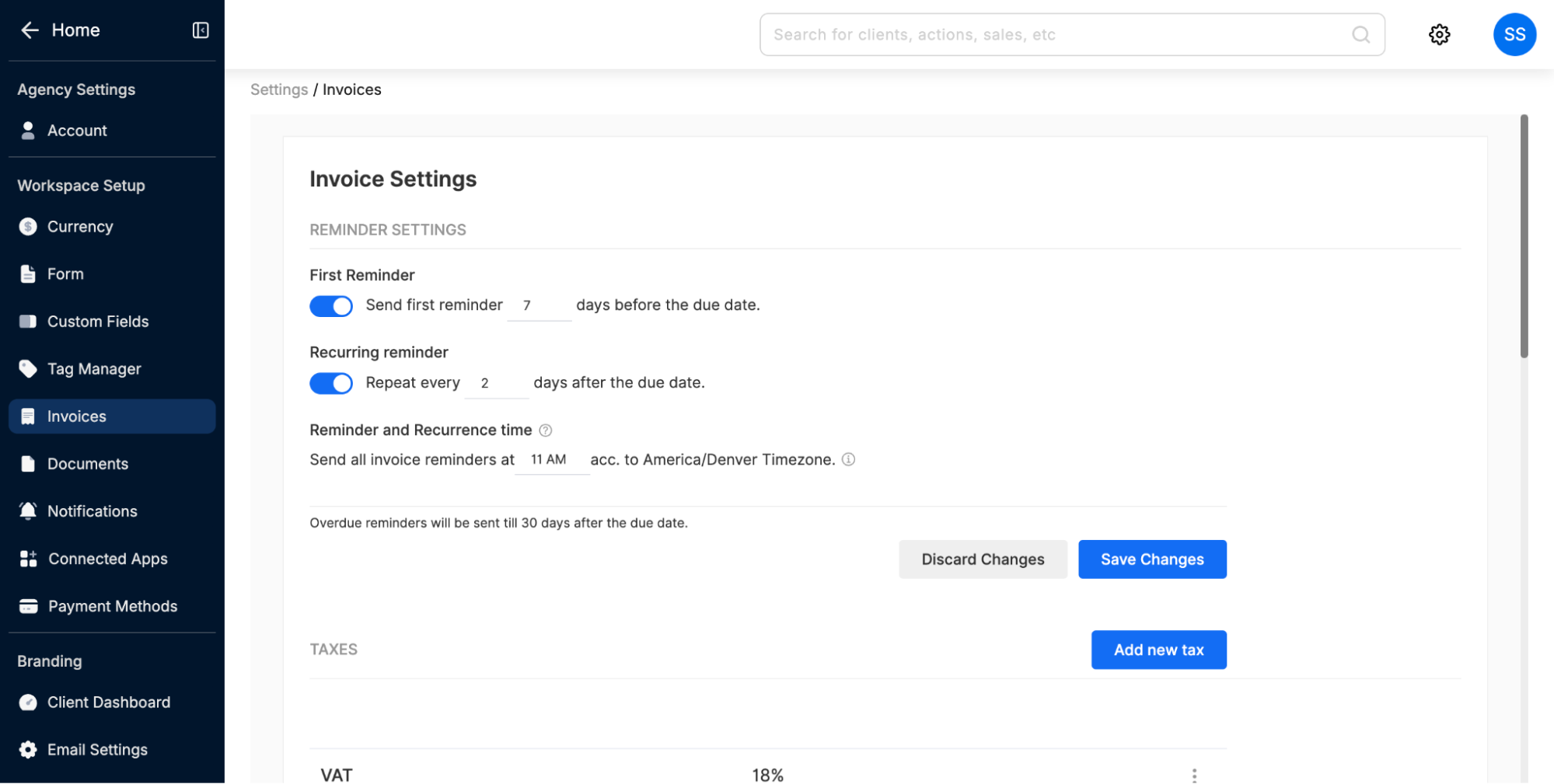
Overdue reminders continue automatically until 30 days past the due date.
Merge fields make automated reminders feel personal rather than generic. In your invoice template, go to Settings > Invoices > Formatting and insert dynamic fields from the right-hand panel.
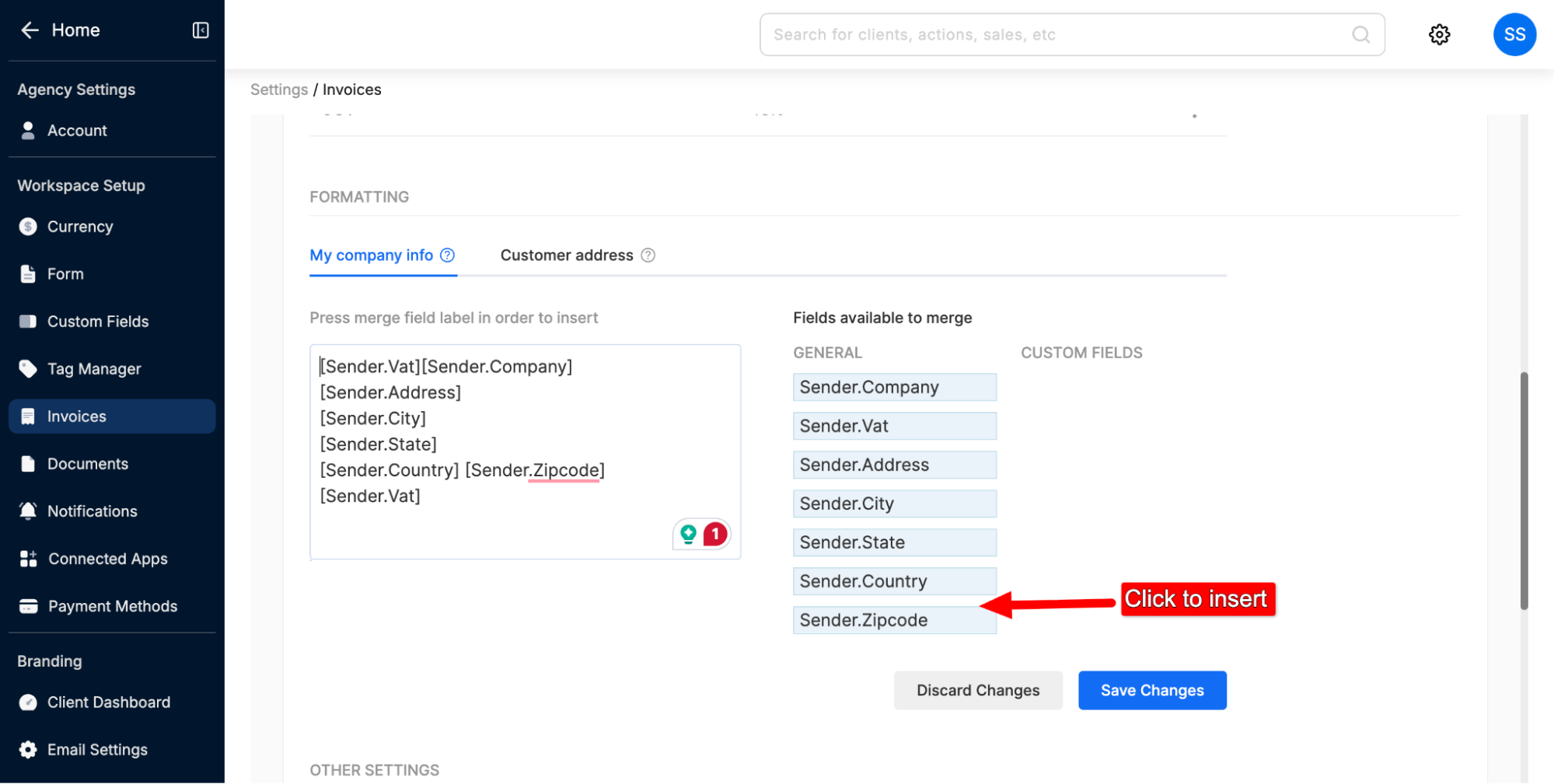
Commonly used ones include [Receiver.Name], [Receiver.Company], [Receiver.Email] for client details, and [Sender.Company], [Sender.Address] for your agency info. These pull automatically from client account data.
The result: no manually written payment emails, no tracking who’s paid, a consistent professional standard across every account.
Read More: Smart Invoicing Tips for Agencies to Boost Cash Flow
2. Automating Document Sharing
Synup OS handles document delivery and tracking from a single interface.
How to share a document:
- Go to Documents > All Documents from the left-hand menu.
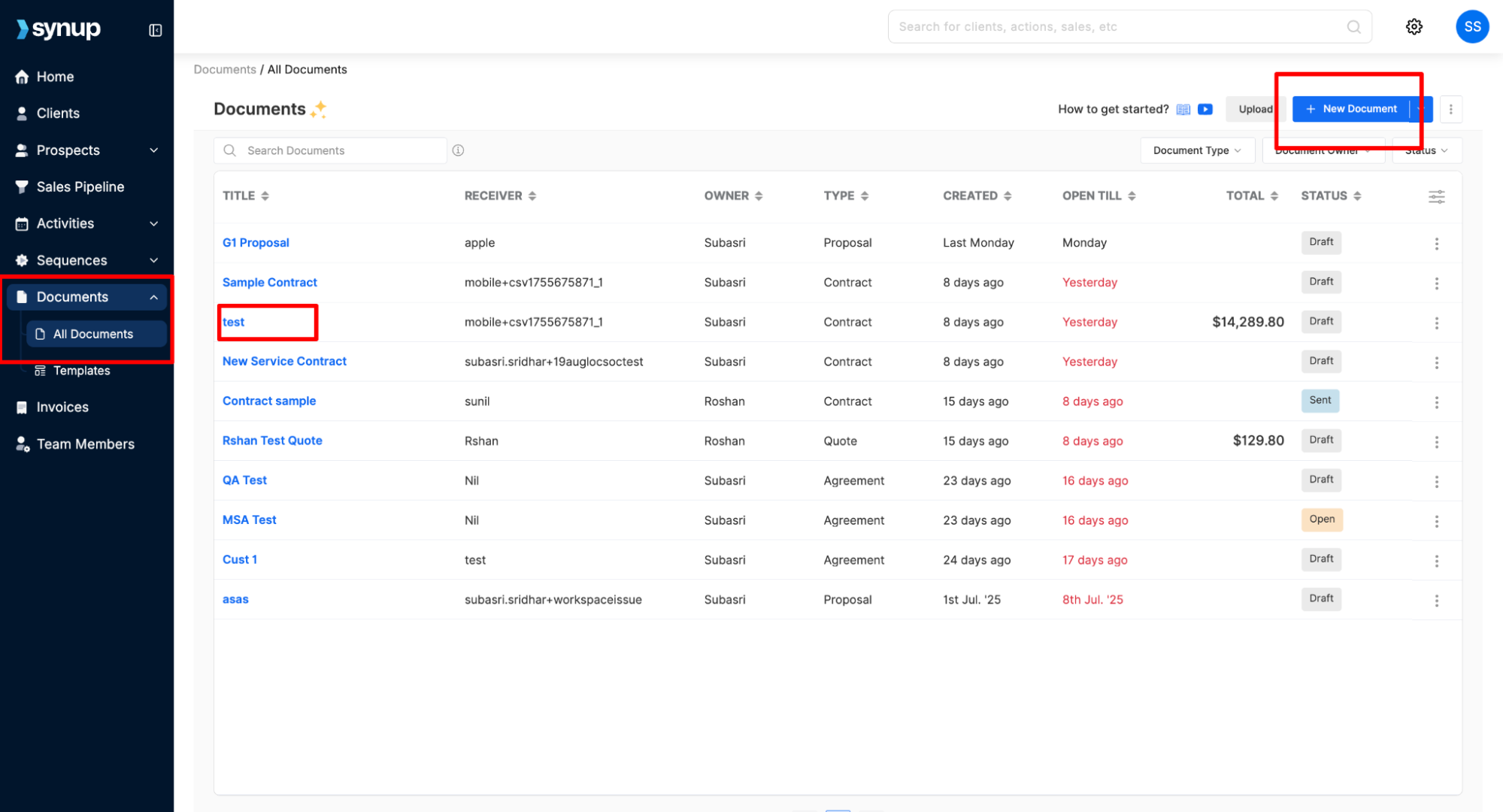
- Open an existing document or click + New Document to create one.
- When the document is ready, click Send in the top-right corner.
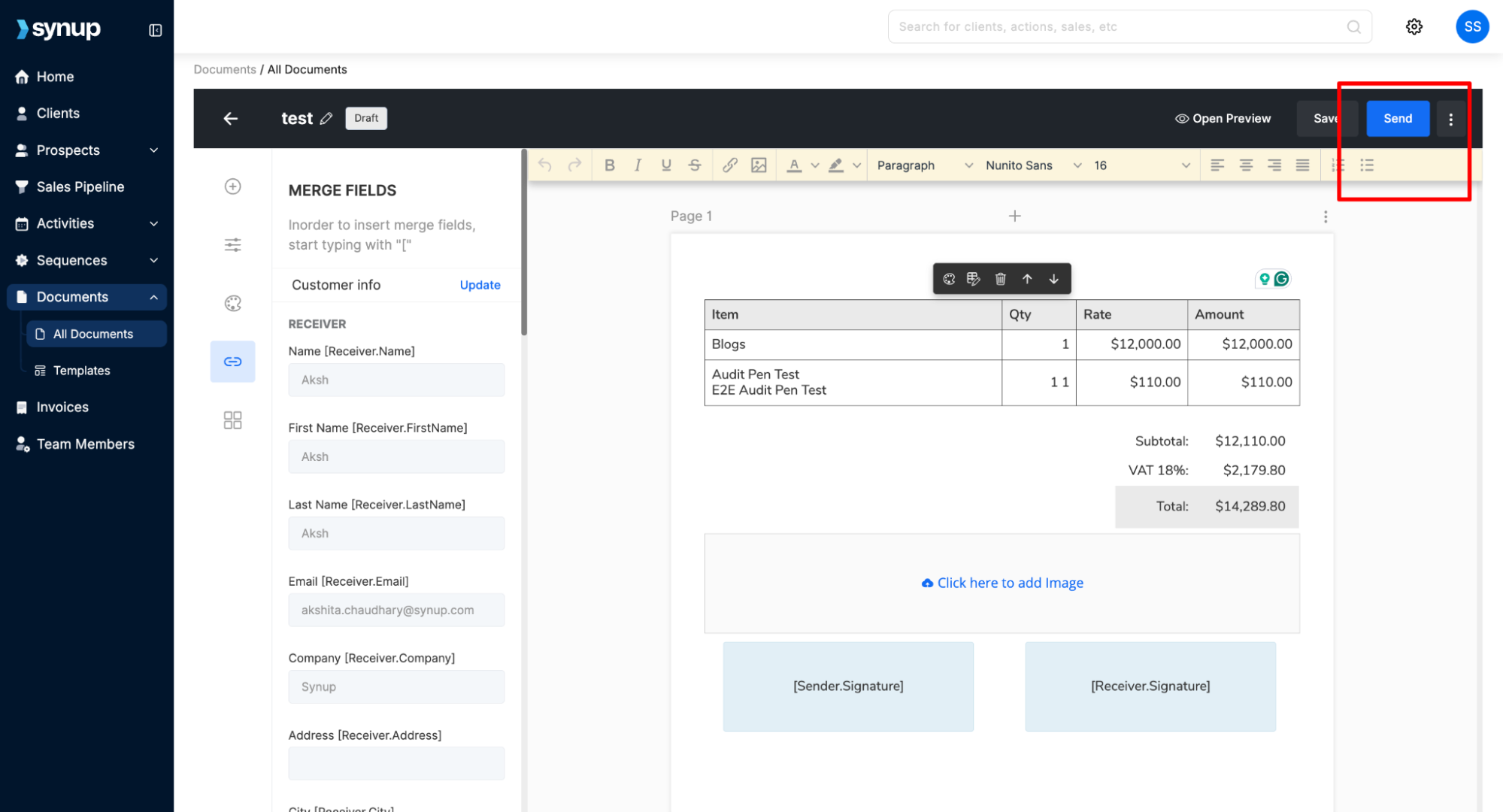
- A “Send Document” window appears. Customize the email to the recipient, then click Send.
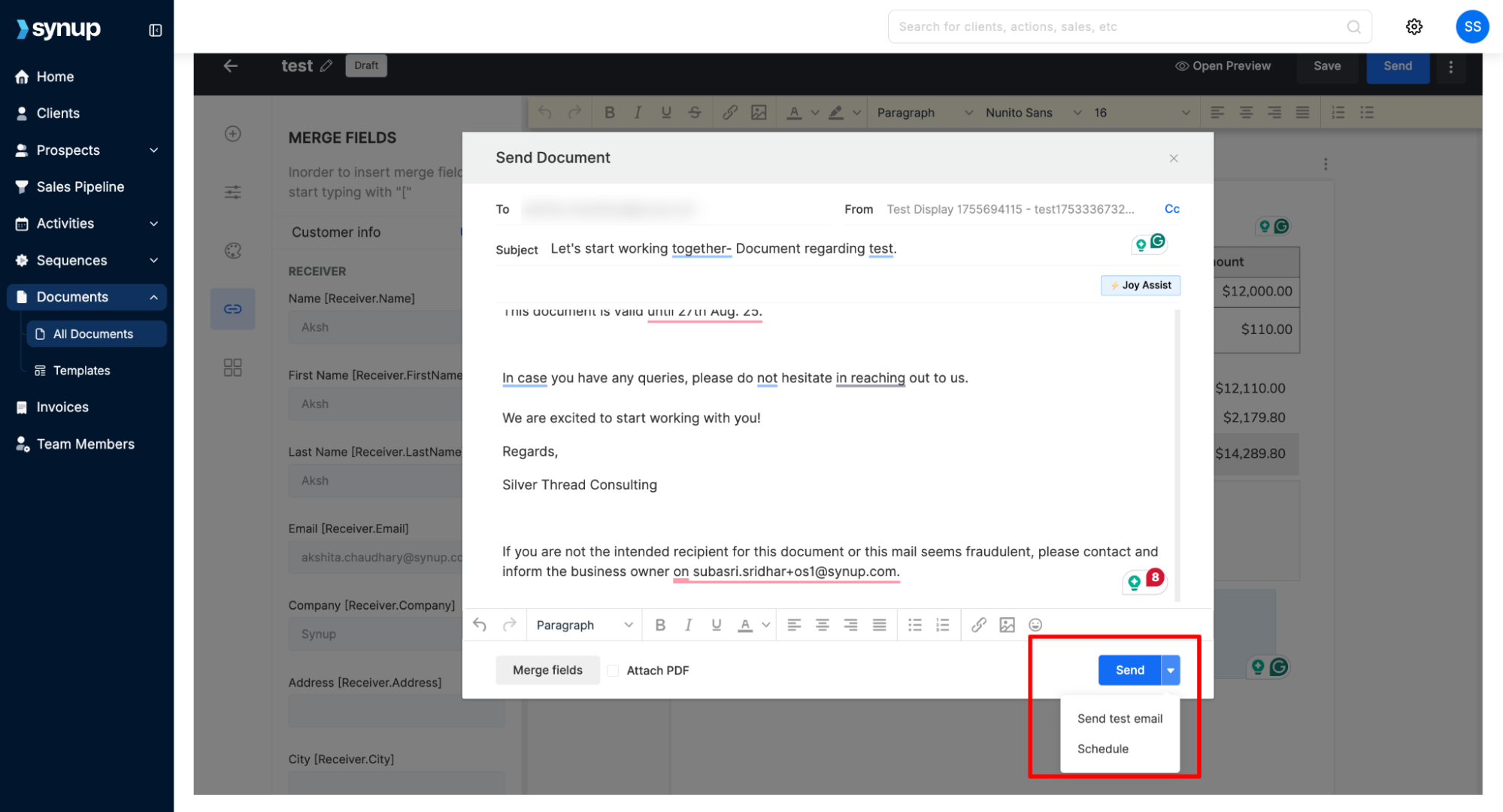
The dropdown arrow next to Send gives you two additional options: send a test email to yourself first, or schedule the document to go out at a later time, which is useful for timing a proposal delivery or a renewal pack to land at the right moment.
Tracking after sending: Once sent, the right-hand panel shows an Audit Trail, a timestamped timeline of when the document was sent, opened, and viewed by the recipient. You know exactly where each document stands without following up to ask.
Documents you’d typically run through this workflow include proposals, contracts, onboarding welcome packs, service summaries, and renewal agreements. For the client data behind these documents, the guide on managing client data with Synup OS covers how to keep it structured and current.
3. Automated Performance Update Emails
Rather than writing individual update emails per client, Synup generates and sends them automatically. AI-written, data-driven, and delivered on your chosen schedule.
Where to find it: Settings > Client Update Email for global configuration, or a specific client’s Detail Page for client-level overrides. Client-level settings always take priority over global defaults.
What you configure:
- Sender details and SMTP (email provider): Connect your email provider, so updates are sent from your address, not Synup’s.
- Recipients: One or more email addresses per client.
- Frequency: Weekly, Monthly, or both simultaneously.
- Tone: Professional, Friendly, Casual, or Formal. You can also add custom instructions (“Keep it under 300 words,” “Never use exclamation marks”) that override the dropdown.
- Sections: Toggle on/off and drag to reorder: Reviews & Ratings, Keyword Rankings, Profile Visibility, Customer Actions, Listing Accuracy, Content & Posts, Review Campaigns.
- Options: “Only when something changes” skips the send if data is flat; “Include links to dashboard” adds clickable buttons (e.g., “Respond to Reviews”) that take clients directly into their Synup portal.
How the AI writes each email: Synup uses a two-step process: first analyzing what changed and building a writing plan, then composing the email based on that plan. It avoids repeating the same talking points from the previous email, adapts its framing when data is flat for multiple periods, and formats everything with inline styles that render correctly across Gmail, Outlook, Apple Mail, and others.
Each email follows a consistent structure: greeting, wins (top 3–5 improvements with actual numbers), areas to watch (declines with suggested actions), next steps, and your custom signature. Metrics are color-coded: green for improvements, red for declines, orange for items to watch.
No data preparation is needed. The system pulls location performance data from Synup automatically at each send.
For the metrics worth including in these updates, our guide on client metrics every agency should track is the reference. For the broader reporting workflow, client reporting for agencies covers the full picture.
4. Building Email Sequences with JoyAssist
Email sequences let you automate a series of outreach or nurture emails to prospects on a defined schedule. JoyAssist, Synup’s built-in AI writing tool, drafts the content so you’re not starting from scratch for each email.
Note: Email sequences are primarily designed for prospect outreach and sales pipeline nurturing, not client communication post-onboarding. Keep this distinction in mind when deciding where sequences fit in your workflow.
How to create a sequence:
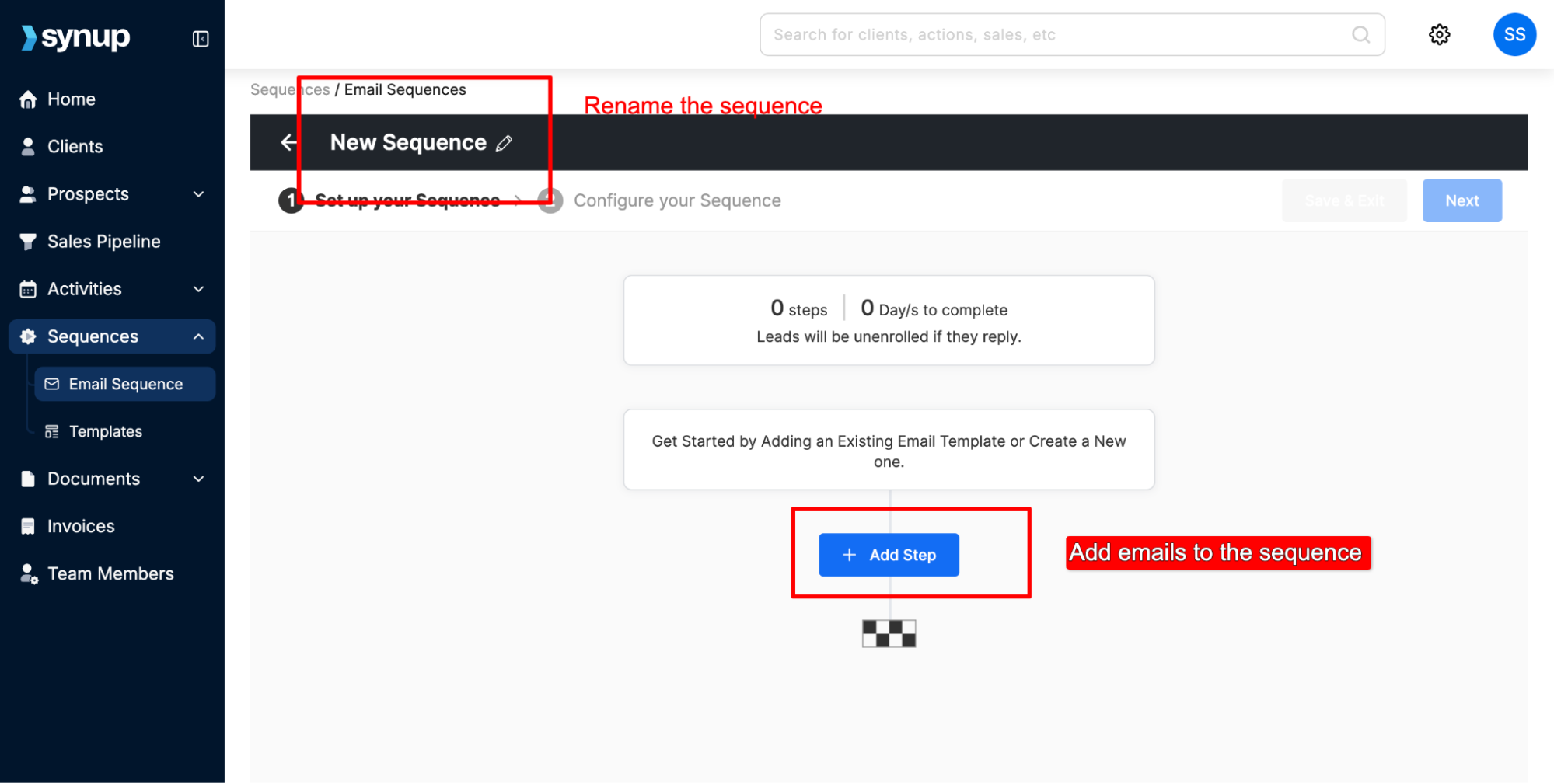
- Go to Sequences > Email Sequences from the left-hand menu.
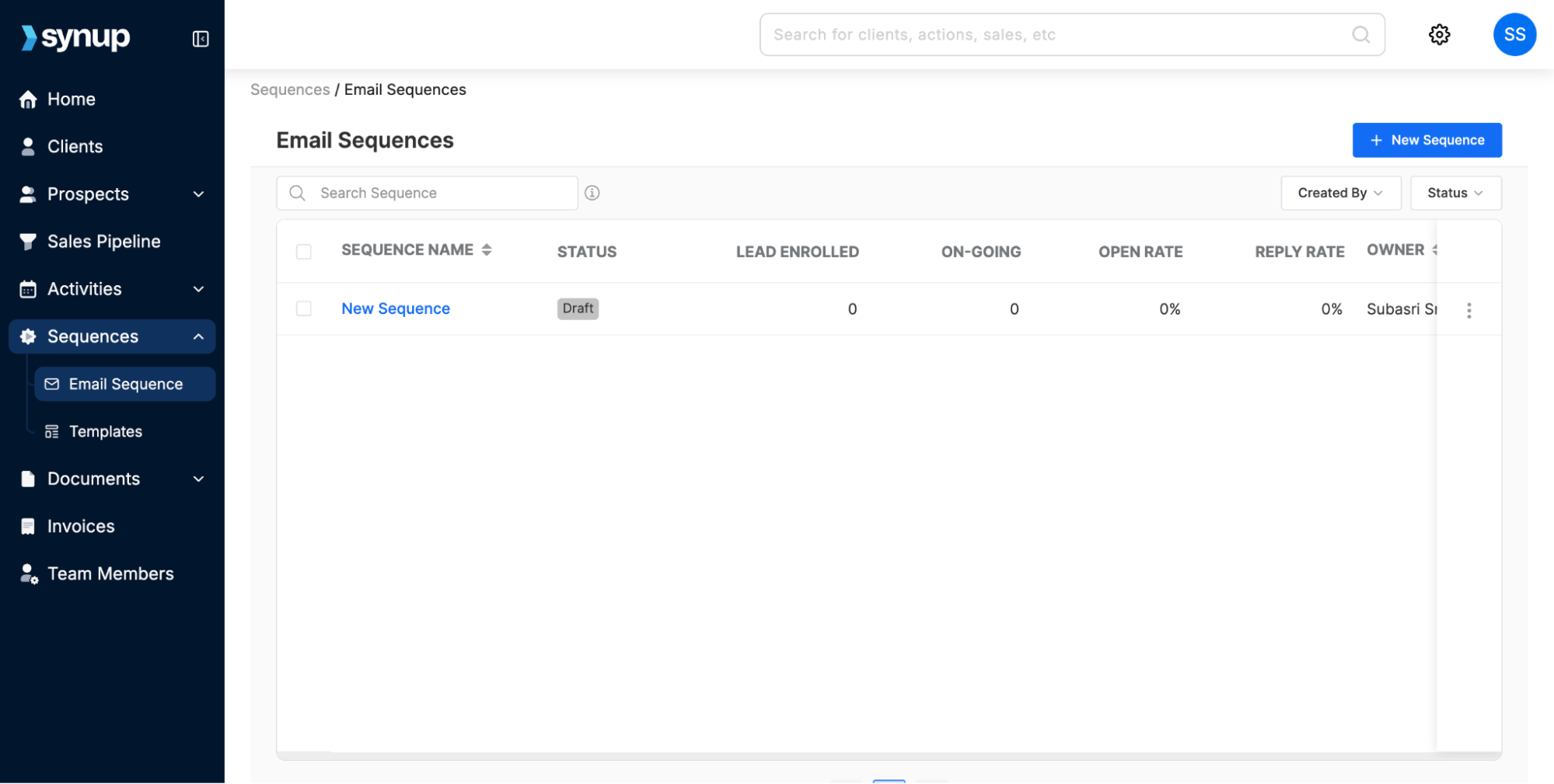
- Click Create New Sequence.
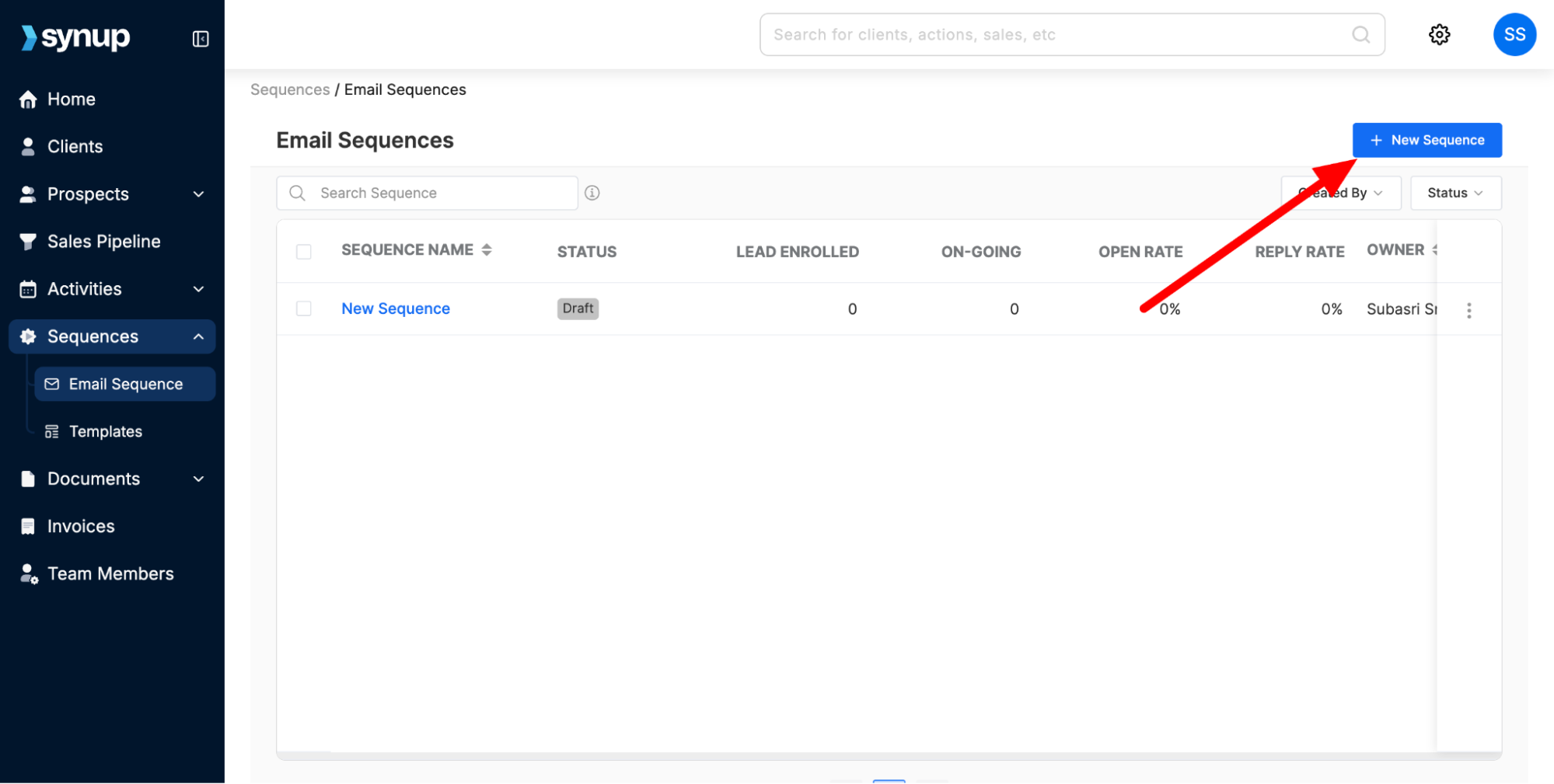
- Click Add Step to add the first email. This opens the email editor, where you can adjust fonts and alignment and attach links or images.
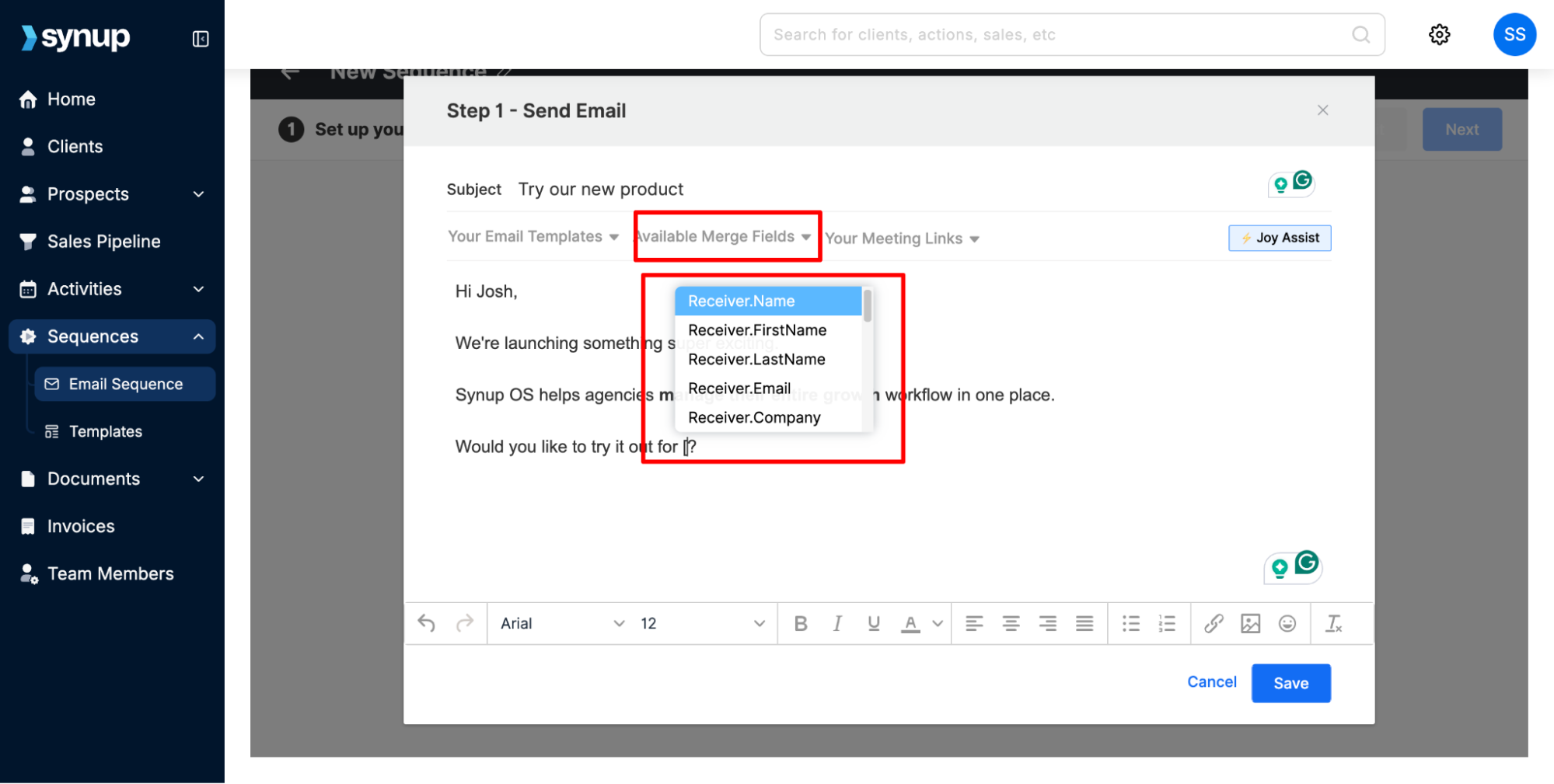
- Add merge fields by typing [ or clicking Available Merge Fields. These pull dynamic values from lead details.
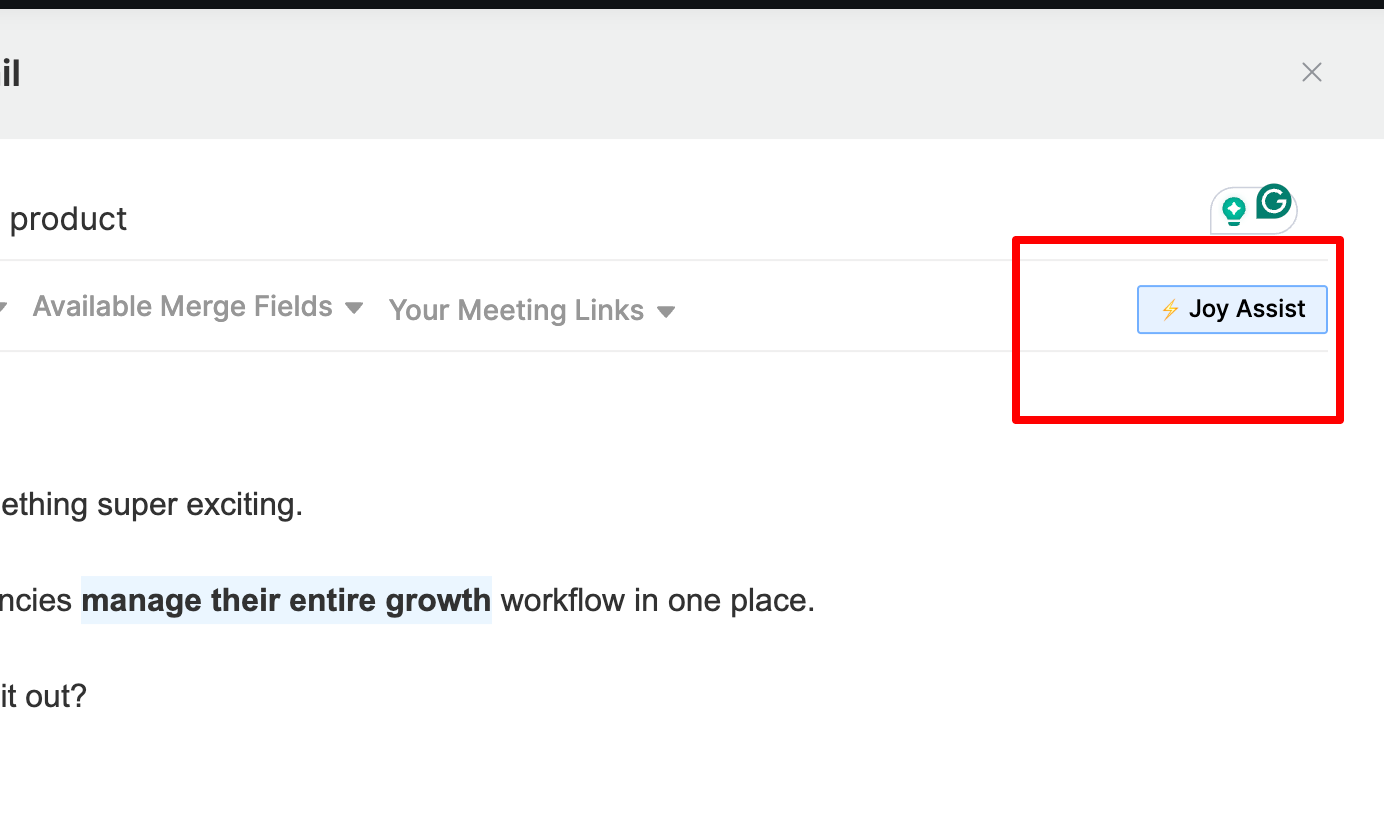
- To use JoyAssist, click the JoyAssist button, enter a short prompt (e.g., “Write a follow-up email for a prospect who didn’t reply to my first message”), set the tone and language, and JoyAssist generates a complete draft. Review, edit if needed, and add it to the step.
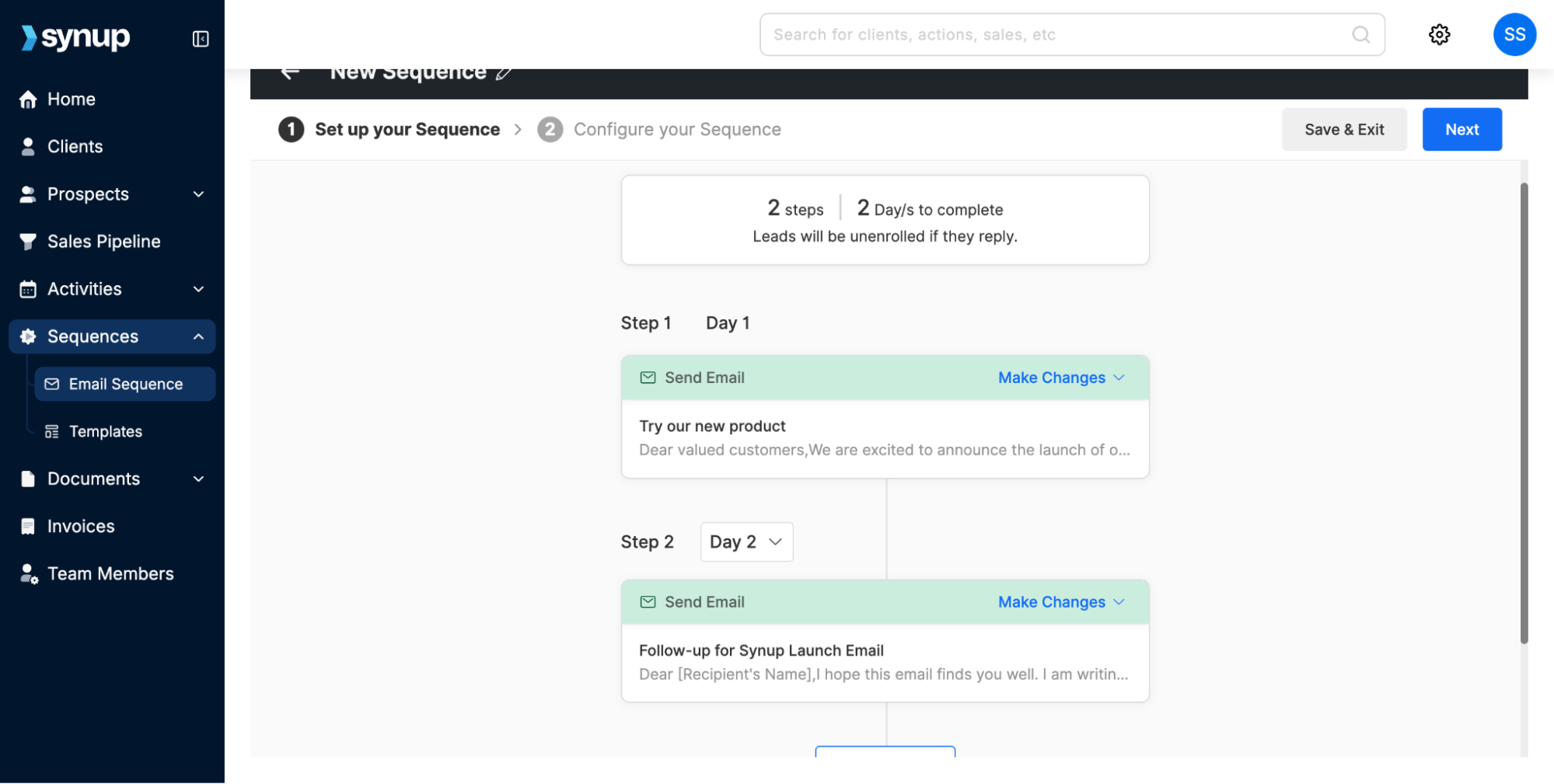
- Add more steps and set the delay between each (e.g., Email 1 on Day 1, Email 2 on Day 3).
- Click Next, configure when the cadence starts, and which days it runs. You can limit it to business days only.
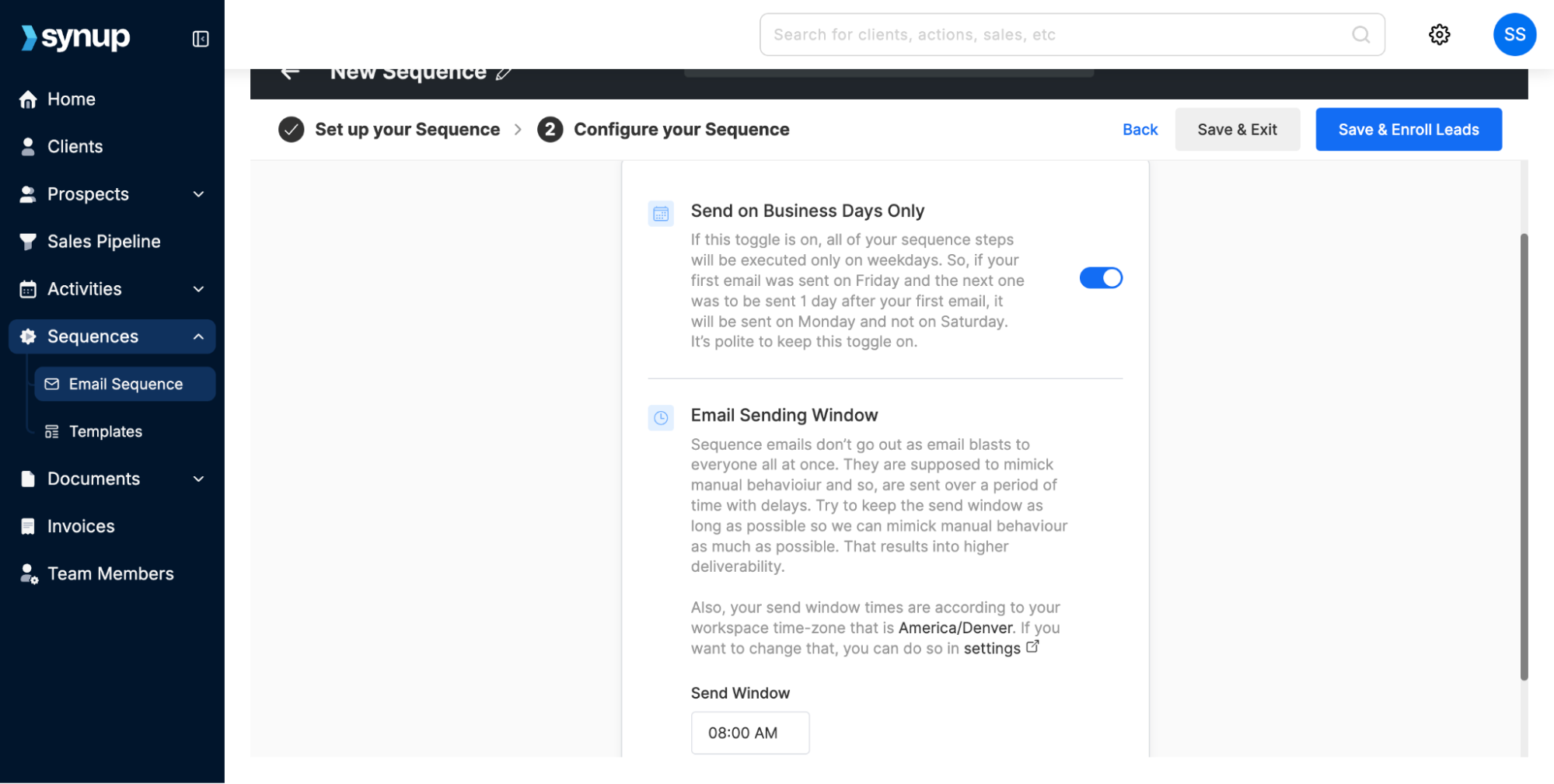
- Click Save & Enroll Leads to add prospects from your sales pipeline, then Launch.
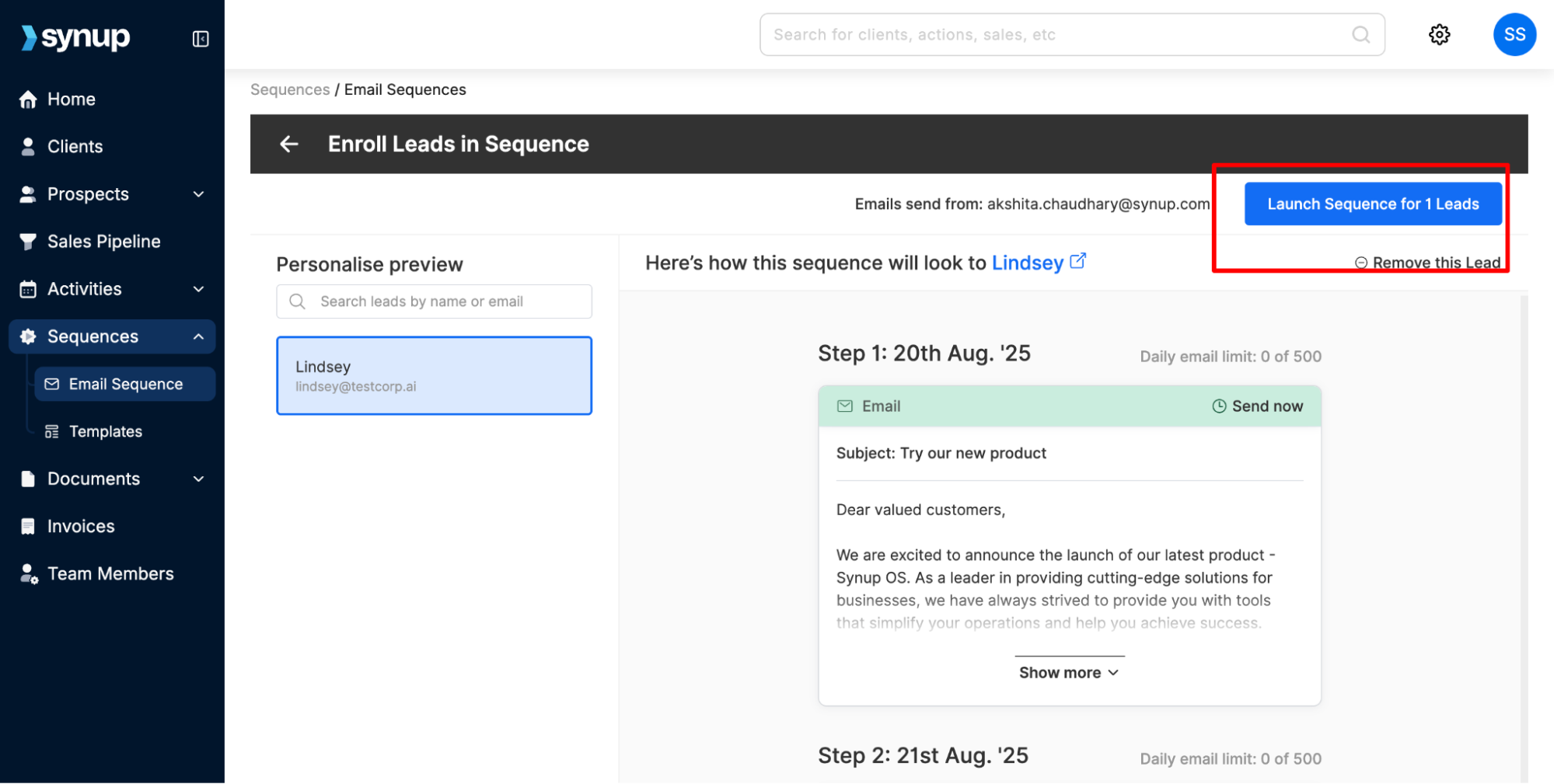
One useful behavior: leads are automatically unenrolled from a running sequence the moment they reply to any email in it, preventing awkward over-communication once a conversation has started.
Common sequence types agencies build:
- Prospect follow-up: Multi-touch outreach for leads who haven’t responded.
- New service introduction: Educating a prospect on a specific offering.
- Renewal lead-up: A sequence that begins 60 days before contract renewal.
Putting It Together
Invoice reminders, automated performance update emails, document sharing, and email sequences together cover the majority of routine communication that currently consumes agency bandwidth without adding meaningful value.
When these run on automation, account managers can direct attention toward what actually requires human judgment, like strategy conversations, escalations, and relationship-building at renewal time.
Also Read: Centralize Your Agency Processes: Learn How to Stop Paying for 10+ Tool Subscriptions
FAQs
- How do marketing agencies automate client communication efficiently?
Marketing agencies automate client communication by using tools like Synup to handle invoices, performance updates, and document sharing. Automation reduces manual work, ensures consistent messaging, and uses client data to keep communication personalized while saving time each week.
- How can agencies automate emails to clients?
Agencies can save time on repetitive client emails by automating reminders, updates, and follow-ups through platforms like Synup. Scheduled workflows and AI-generated messages eliminate manual drafting while ensuring timely, consistent communication across all client accounts.