How To Automate Sales Follow-Ups To Book More Clients

 Most agencies do not lose deals because prospects say no. They lose deals because conversations die. A follow-up email never got sent, a reminder call was missed, or the prospect simply moved on to another agency. Sales is not about chasing harder. It is about showing up consistently and clearly until a decision is made. The real problem is that manual follow-ups eat time, get forgotten, and rarely happen at the right moment.
With the right system, follow-ups become a consistent and reliable process. In this guide, we will walk through a step-by-step process to automate sales follow-ups so you can book more meetings, close more clients, and keep your pipeline healthy.
Where Most Follow-Ups Go Wrong
Agencies often treat follow-ups like an afterthought. Send one email, maybe two, and then move on. But the result is the same every time: conversations stall, prospects disappear, and opportunities are lost.
Here’s the problem:
-
Follow-ups stop too soon. Prospects usually need five to seven touchpoints before they make a decision. Most agencies quit after two.
-
Messages feel generic. A copy-paste “Just checking in” email does not stand out in a crowded inbox.
-
They lack context. Follow-ups that do not build on the last interaction feel disconnected.
-
They get lost. Between inbox chaos, messy CRMs, and multiple reps, reminders slip through the cracks.
Instead of creating momentum, poor follow-ups kill conversations. The real purpose of a follow-up is to add value, create urgency, and make the next step feel easy.
Smarter Follow-Ups With Synup OS
Synup OS makes automating follow-ups simple by giving agencies a complete workflow in one place.
With Follow-Up Automation, you can:
- Build sequences of emails, calls, and LinkedIn touches that run automatically.
- Personalize every message with insights from audits, past conversations, or digital profiles.
- Use AI to adjust timing and content based on how prospects respond.
- Track every touchpoint in one timeline so nothing gets lost.
- Keep your pipeline active without adding manual work for your team.
Instead of juggling sticky notes, inbox reminders, and disconnected CRMs, Synup OS gives your team a real-time, complete view of every prospect and every interaction.
How Does Synup OS Help?
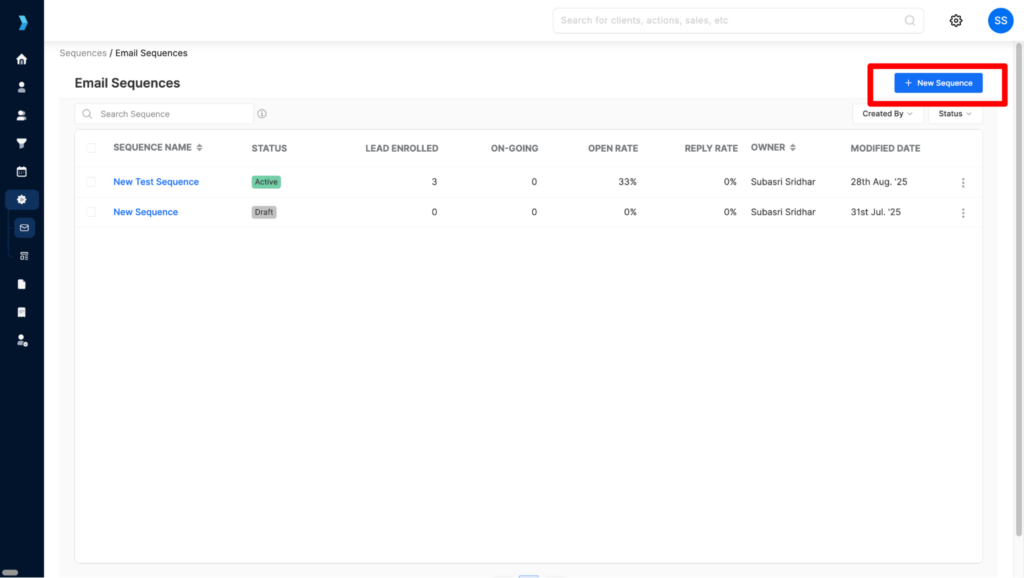
Step 1: Navigate to SequencesStart by heading to the left-hand menu inside your dashboard. From there, click on Sequences > Email Sequences.
This will open up the Email Sequences dashboard. Here you can see every sequence you’ve already built, check on their status, review performance, and of course, create brand new ones whenever you need.
Step 2: Start a New Sequence or Continue a Draft
On the Email Sequences dashboard, you can either hit New Sequence to start fresh or pick up from any draft you already created.
Step 3: Check the Sequence Layout
In this case, I’m editing a draft which is pre-saved. Next, you’ll see the sequence steps and the email content lined up. This gives you a clear view of what’s going out and when. If you need changes, just click Edit Sequence on the top right.


If you’ve initiated a New Email Sequence, you can simply click on ‘Add a step’ and start typing your email body.
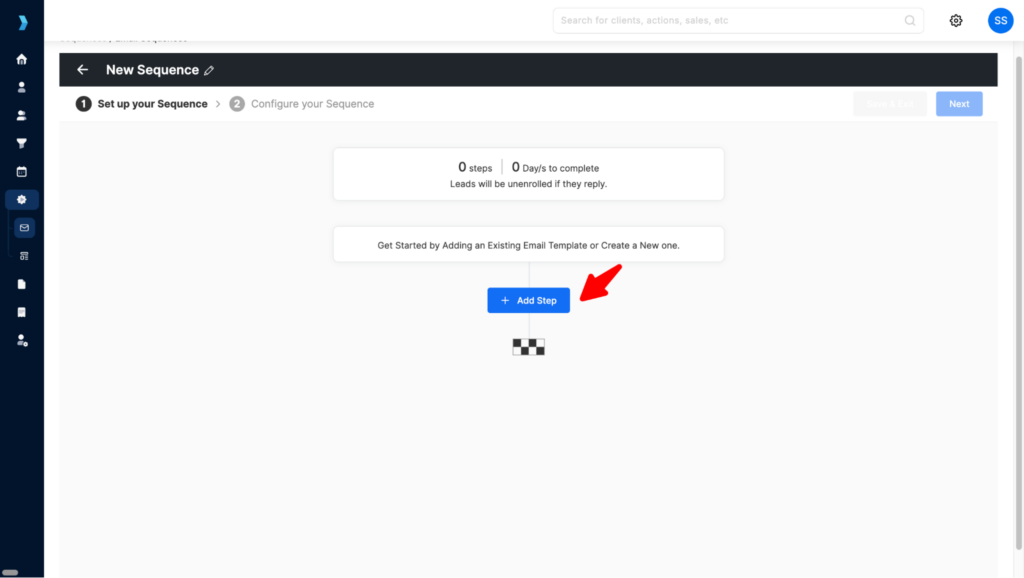
Step 4: Edit and Personalize Your Emails
Make your adjustments to the email copy here. Update subject lines, refine the body text, or add personalization so the emails feel on point.
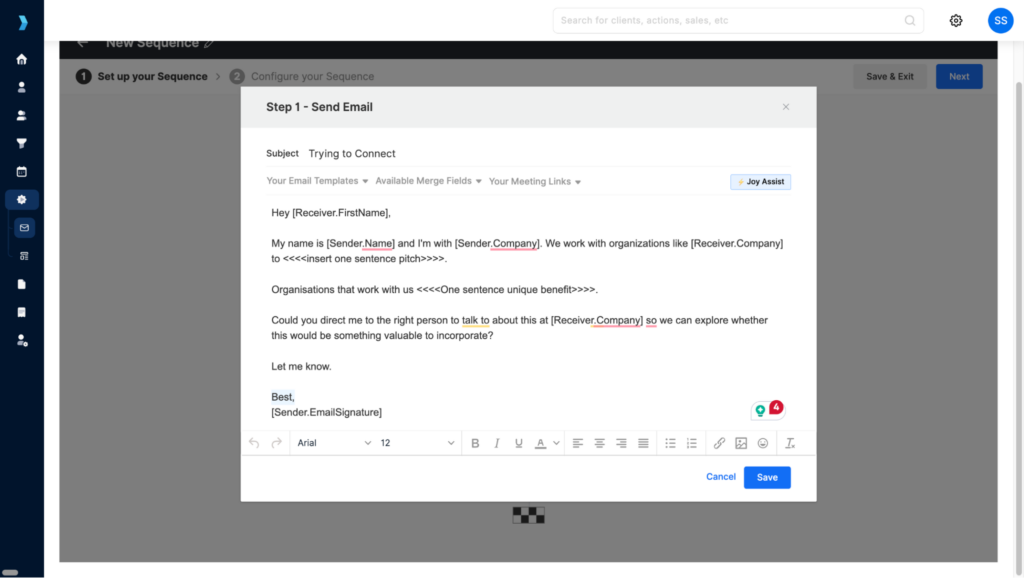
Step 5: Schedule and Save
Click Next to set when the emails should go out. Once you’ve locked in the timing, hit Save and your sequence is ready to go.
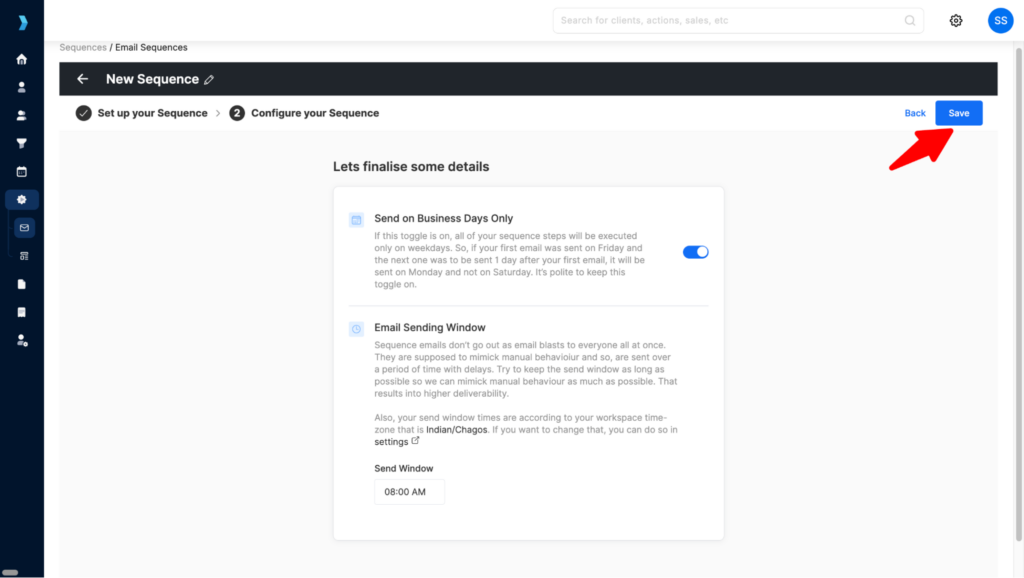
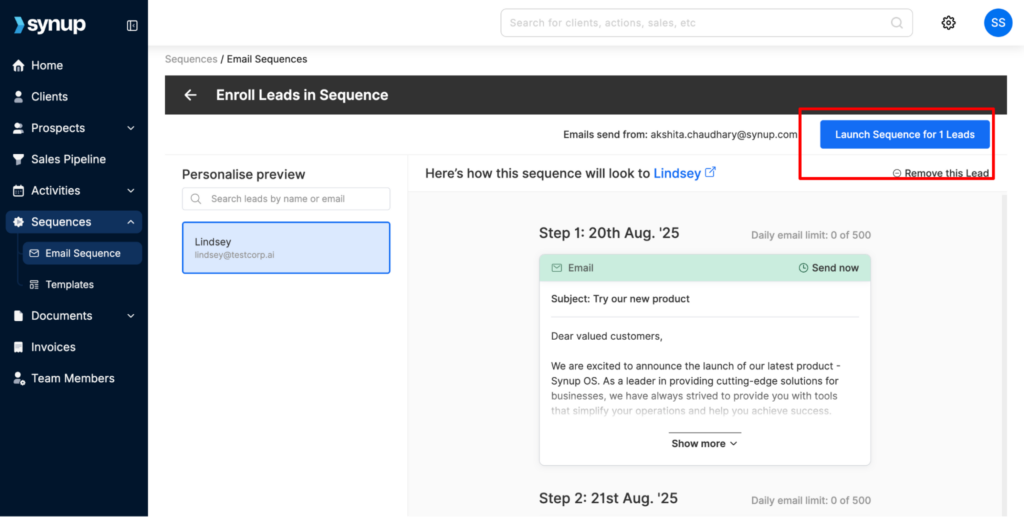
Step 6: Enroll New Leads into a SequenceNow, let’s get those new leads into action. Click on any sequence that’s currently active and running.
When you open it, you’ll land on the sequence details page. Here you’ll not only see the structure of the sequence but also performance metrics like open rates, replies, and other insights that help you measure how it’s doing. In the top right corner, you’ll see the Enroll Leads button, click that.
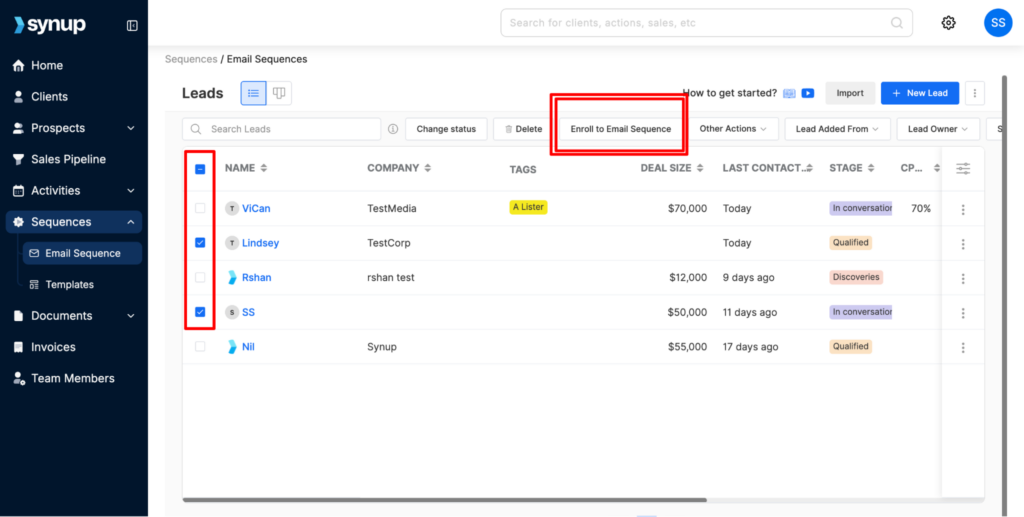
Here, from the leads you’ve already added into your sales pipeline, choose the specific contacts you want to move into this sequence. This way you can be intentional about who gets added, instead of dropping everyone in at once.
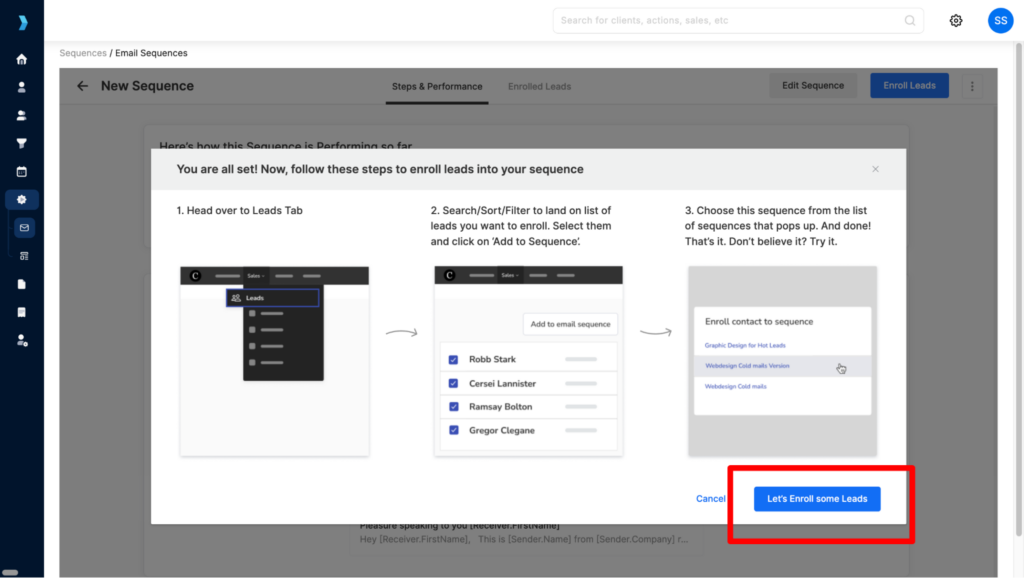
Once you’ve made your selection, click Enroll to Email Sequence and pick the exact sequence you want them to be part of (whether it’s the one you just created or an existing one you want to test again).
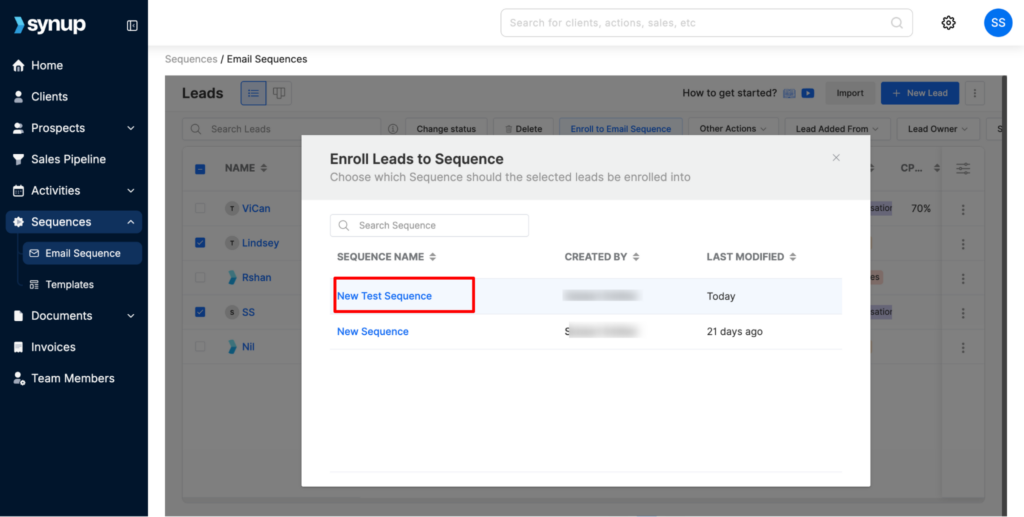
Step 7: Finally, if you’re ready to launch, click launch for the sequence and for the leads you added.
Note: Enrolling new leads does not affect the sequence for your existing leads, so you can safely launch the sequence again.
Conclusion
By the end of this process, you will have a consistent system for following up that never misses a prospect. Every touchpoint becomes an opportunity to build trust, add value, and move the conversation forward. Instead of sending generic reminders, your messages connect directly to outcomes like lost traffic, missed engagement, or declining customer trust.
The key is to stay consultative. Prospects do not care about your reminders, but they do care about risks that affect their business. Always frame follow-ups in terms of growth, revenue, or reputation.
Finally, remember that the follow-up is not the end of the process. It is the bridge that keeps leads warm until they are ready to buy. With Synup OS, you can automate the entire workflow, keep every interaction organized, and book more clients without burning out your team.
Start using Synup OS today to automate your follow-ups and build a healthier pipeline.